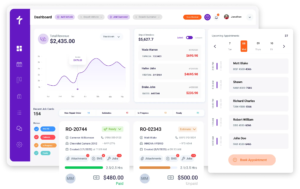
Auto Repair Accounting Software

Every Invoice You Close in Torque360 Posts to QuickBooks Automatically

Torque360 connects directly to QuickBooks Online accounting software for auto repair shops. When a repair order is paid, the invoice, payment, customer record, and itemized line items post to QuickBooks without a manual export, CSV file, or end-of-day entry process. Your bookkeeper opens QuickBooks and sees current data. Trusted by 1,000+ independent repair shops across auto, truck, motorcycle, RV, and powersports.
  • Real-time sync to QuickBooks Online when each transaction completes

  • Parts, labor, fees, and taxes posted as separate line items

  • Chart of accounts mapped once, runs automatically after that

  • No CSV export, no manual entry, no reconciliation

Quickbooks Accounting Software for Auto Repair Shops

How Does Torque360 Sync Repair Order Data to QuickBooks

How It Work?

Torque360’s QuickBooks auto repair accounting software sync is not a batch export or end-of-day process. When payment is collected on a repair order inside Torque360, the invoice, payment record, customer information, and itemized breakdown post to QuickBooks Online the moment the transaction completes. No action from your service writer or bookkeeper is required.

Connect QuickBooks Account

Go to Settings inside Torque360 and connect your QuickBooks Online account through QuickBooks’ standard OAuth authorization. No third-party middleware or bridge tool is required. The connection is native and direct.

Map Your Chart of Accounts

During setup, map your Torque360 parts catalog and labor services to the correct accounts in your QuickBooks chart of accounts. Parts revenue, labor revenue, shop supply fees, & tax liability each route to the account you specify. This configuration runs once.

Work the Repair Order Normally

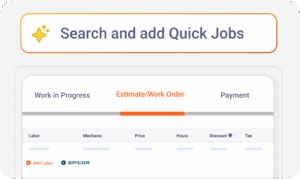
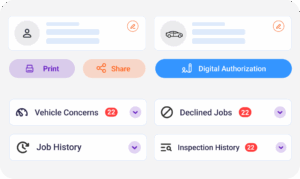
Technicians log labor hours, pull parts from inventory, and document work authorizations on the repair order. Nothing on the RO needs to be re-entered for the QuickBooks auto repair accounting software sync.

Generate the Invoice

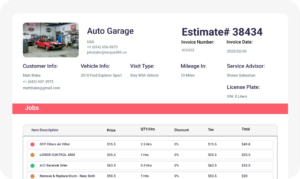
When the job is ready for checkout, the closed repair order converts to a finalized invoice in one click. Parts, labor, shop supply fees, and taxes carry forward exactly as documented on the RO in QuickBooks for auto repair shops.

Collect Payment

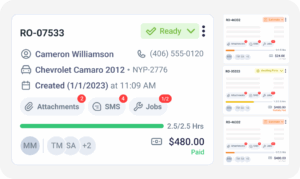
Payment is collected through TorquePay text-to-pay, in-person card, Google Pay, or other accepted methods. The repair order updates when payment clears and is updated in the auto repair shop accounting software.

Sync Posts Automatically

Torque360 posts the invoice and payment to QuickBooks Online. A sync confirmation appears inside Torque360. Your bookkeeper sees the entry in QuickBooks without any action from shop staff.

Integrate Your Entire Workflow
Quickbooks automotive accounting software

What Data Does Torque360 Transfer to QuickBooks on Every Invoice

Every invoice synced from Torque360 to QuickBooks for auto repair shops arrives organized and linked to the correct accounts. The record includes the repair order number, customer information, payment method, itemized parts and labor totals, shop supply fees, and applicable taxes.

Torque360 matches the customer to an existing auto shop software QuickBooks record or creates a new one automatically. The invoice in QuickBooks is tied to the customer, not filed as an unattributed transaction.

The RO number from Torque360 maps as the invoice reference in QuickBooks. When a record is questioned, the RO number connects the QuickBooks entry directly back to the full job history in Torque360, technician notes, digital authorizations, and all.

Parts revenue and labor revenue route to the separate accounts you configured during setup. QuickBooks auto shop accounting software receives categorized revenue, not a combined total that requires manual splitting later.

Tax is separated by rate and posted to the correct liability account. When parts and labor are taxed at different rates, each posts correctly based on your local settings configured in Torque360.

What Operational Problems Does QuickBooks Integration Fix for a Repair Shop

Auto repair shops running QuickBooks separately from their shop management software deal with a specific set of recurring problems. Service writers close a repair order, and then someone has to open QuickBooks and enter the same information again. For a shop closing 15 to 25 jobs per week, that is a standing task that takes hours and introduces errors every time a number is typed incorrectly.

Parts pulled, labor logged, fees applied, and taxes calculated on the repair order already exist in Torque360. When the sync is live, those numbers post to QuickBooks auto repair shop accounting software automatically. 

Shops that batch-export data at the end of a shift or week are always working with stale QuickBooks records during the week. Torque360 auto repair accounting software posts each transaction as it completes, so QuickBooks reflects current shop activity the moment a job closes.

When every invoice syncs with the repair order number, customer record, and itemized line items, tax prep starts from organized records, not from printed ROs, bank statements, or memory. Each entry is already in the right account.

Each synced invoice in QuickBooks includes the repair order reference, customer name, payment method, and itemized totals. If a record is questioned, the linked repair order in Torque360 has the full job history, technician notes, and digital authorization to back it up.

Quickbooks’ top-notch security measures

Keep QuickBooks Current Without Touching It

Torque360 posts every closed invoice to QuickBooks Online the moment the transaction completes. Your bookkeeper works from accurate, real-time data. Your service writers keep working on repairs. The sync runs in the background while the shop runs in the foreground.
auto repair estimating software

Why Independent Repair Shops Run Their Books
Through Torque360’s QuickBooks Sync

See why repair shops move away from manual QuickBooks entry once invoices and payments start syncing automatically from a connected repair order workflow.

No re-entry from paper ROs

Every number that reaches QuickBooks is documented on the repair order first. Parts used, labor logged, and fees applied carry forward to the invoice and sync without a service writer or bookkeeper touching QuickBooks.

Real-time data and accounting

Torque360 posts each transaction as it completes. QuickBooks accounting software for auto repair shop reflects what the shop closed today, not what someone entered last night from a stack of printed repair orders.

Line-item records for tax time

Synced invoices arrive in QuickBooks with the RO number, customer name, and itemized totals already separated by account. Tax prep and audit preparation start from organized records, not from reconstructed history.

One setup, automatic afterwards

Chart of accounts mapping runs once during onboarding. After that, every invoice synced inside QuickBooks shop management software follows the same routing without ongoing configuration or maintenance.

No third-party bridge tool

Torque360 connects to QuickBooks Online auto repair shop accounting software natively through OAuth. There is no middleware, no separate subscription, and no additional configuration layer to maintain.

How QuickBooks Sync Connects to the
Rest of the Torque360 Platform

The QuickBooks integration is one step in a connected shop workflow. Every dollar that reaches QuickBooks was first estimated, authorized, worked, invoiced, and collected inside Torque360, which means the financial record reflects what actually happened in the shop.

appointment-booking-widget

Book jobs, manage calendars, and reduce no-shows.

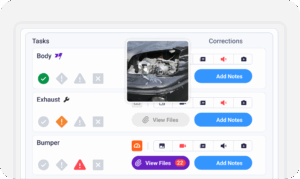
digital vehicle inspection software

Capture photos, videos, notes, and findings.

auto repair estimating software

Build quotes with labor, parts, and pricing.

repair order software

Convert approved work into organized repair orders.

auto repair invoicing software

Generate invoices from completed labor and parts.

auto repair job board software

Track jobs, assign technicians, and monitor progress.

Which Auto Repair Shops Get the Most From Torque360’s QuickBooks Integration

Torque360’s QuickBooks sync is built for repair shop workflows, not generic business invoicing. It fits how repair shops close jobs and manage books, whether the owner handles the accounting themselves or a dedicated bookkeeper manages QuickBooks separately.

Mechanic Shop

Motorcycle Repair

Truck Repair

Oil Change

Tire Repair

Mobile Mechanics

How Independent Repair Shops Cut Bookkeeping Hours & Closed Their Books Faster With Torque360

From double entry and end-of-week catch-up to real-time QuickBooks records without manual intervention. See how independent repair shops replaced disconnected invoicing and manual data entry with a connected workflow that posts every closed job to QuickBooks automatically.


“Torque360 changed everything for us. On long projects, nothing gets lost anymore. Labor, parts, approvals, it’s all there. Since using it, I haven’t lost a single cent.”

— Artur Pires, Co-Owner

75%

Missed Revenue Prevented

2x

Increase in Project Visibility

“Torque360 helped us bring everything into one place. Jobs, parts, and invoices are easier to manage, and the shop runs more smoothly day to day. It gives us the structure we needed.”

— Cauy Cuthbertson, Owner 

100%

Centralized Shop Workflows

3x

Boost in Operational Efficiency

“We were doing estimates and tracking jobs manually, and it caused delays and confusion. Now with digital estimates and invoicing, everything is faster and more organized.”

— Himel, Owner

50%

Faster Estimate & Job Processing

1.2x

Higher Customer Capacity

Testimonials

Hear From Shops Using
Torque360!

google
capterra
trustpilot
G2 Award Badge for User Love in Auto Repair Shop Software

Connect Your Repair Orders to QuickBooks Without the Manual Work

When an invoice closes in Torque360, QuickBooks updates. No export, no re-entry, no reconciliation. Your books stay current because the sync runs in the background while you run the shop.

  • Trusted by 1,000+ independent repair shops across the US

  • QuickBooks sync available on Torque360, starting at $99.99/mo

  • Every invoice synced correctly from that point forward

Frequently Asked Questions

Torque360’s direct connection to QuickBooks Online automatically posts invoices, and customer records from Torque360 to QuickBooks the moment a transaction is completed. The sync transfers parts revenue, labor revenue, shop supply fees, and tax amounts to the chart of accounts you configured during setup. No manual export, no CSV import, and no batch reconciliation process is required.

Torque360 integrates with QuickBooks Online. QuickBooks Desktop is not natively supported. If your shop currently runs QuickBooks Desktop, verify compatibility with the Torque360 team before selecting a plan.

The sync transfers itemized data, not a lump sum. Parts totals, labor totals, shop supply fees, tax amounts by rate, and payment method are all included in each synced record. During setup, each category maps to the correct account in your QuickBooks chart of accounts, so every invoice routes to the right line automatically.

No. Torque360 connects natively to QuickBooks Online without a bridge tool or middleware. The connection is established directly through Settings inside Torque360 using QuickBooks’ standard OAuth authorization process.

Torque360 does not automatically reverse a voided repair order in QuickBooks for mechanic shop if the transaction has already been synced. A manual adjustment is required in QuickBooks when a synced RO is voided. Build a review step into your month-end reconciliation to catch any voids that occurred after sync.

Connecting your QuickBooks Online account and mapping your chart of accounts is a one-time setup. Most shops complete it in a single session with support from Torque360’s onboarding team. After setup, the sync runs automatically with no ongoing configuration required.

Torque360 tracks fleet accounts and net-terms balances in its accounts receivable module. Fleet invoices sync to QuickBooks when payment is collected, consistent with how standard invoices sync. Open fleet balances are visible within Torque360’s payments dashboard until payment posts.